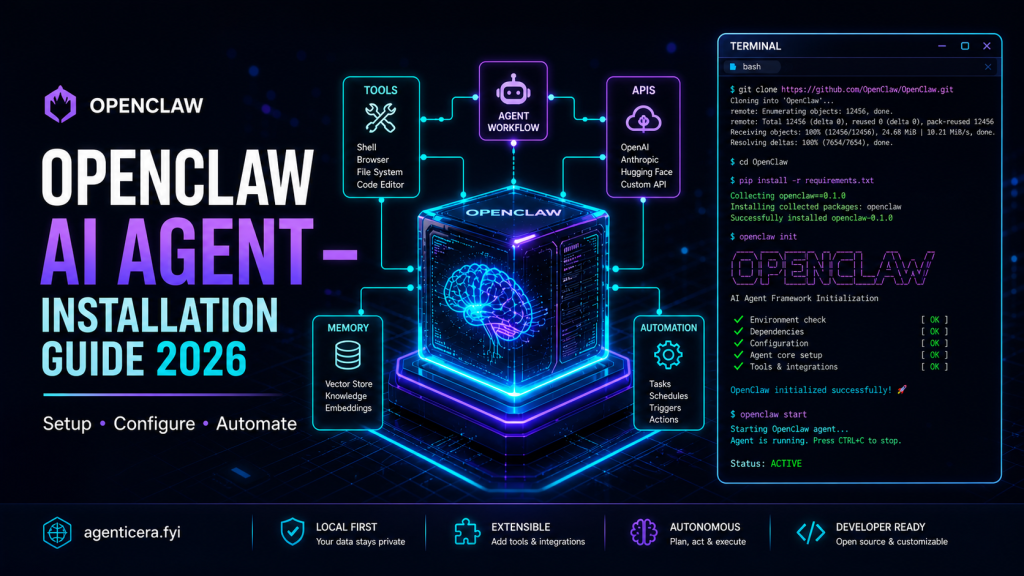
OpenClaw is the fastest-growing open-source personal AI agent in 2026 — and this step-by-step guide covers everything you need to install, configure, and secure it on any operating system. Whether you’re a developer or a power user, you’ll have a fully working AI agent running on your own hardware by the end of this article.
Quick links: OpenClaw Website · GitHub Repository · Official Docs · Discord Community
What Is OpenClaw?
OpenClaw (formerly Clawdbot) is a self-hosted, open-source AI agent gateway created by Peter Steinberger. It connects AI models like Claude, GPT-4, and locally-hosted open-source models to your everyday messaging apps — WhatsApp, Telegram, Slack, Discord, iMessage, Signal, and more.
Unlike hosted AI assistants, OpenClaw runs entirely on your own hardware, keeping your data private. It has surpassed 200,000 GitHub stars since its January 2026 relaunch, making it one of the most-starred AI projects on GitHub.
How OpenClaw Works — Architecture at a Glance
| Subsystem | Role |
|---|---|
| Gateway | Single control plane for sessions, routing, and channel connections |
| Node-Host | Privileged execution process for tools and shell commands |
| Agent Runtime | Core reasoning loop; sends/receives from the configured LLM |
| Channel Adapters | Connectors for messaging platforms |
| Control Plane (WebUI) | Browser dashboard for config, chat, and session management |
⚠️ Safety Warning: Do not install OpenClaw on a primary work or personal machine. It has OS-level access to files and commands. Use a dedicated device, a cloud VM (e.g., DigitalOcean Droplet), or a Docker container.
Prerequisites
Before installing OpenClaw, ensure you have the following:
- Operating System: macOS, Windows 10/11, or Linux (Ubuntu 20.04+)
- Node.js: Node 24 (recommended) or Node 22 LTS (22.14+)
- An AI provider API key — from Anthropic, OpenAI, Google AI Studio, or a compatible provider like OpenRouter or Ollama for local models
- A messaging account for your chosen channel (Telegram is fastest to set up)
Check your Node version before proceeding:
node --version # Should output v24.x.x or v22.14+Step 1 — Install OpenClaw
Install the OpenClaw CLI globally via npm or pnpm:
npm install -g openclaw@latest # or pnpm add -g openclaw@latestVerify the installation succeeded:
openclaw --versionStep 2 — Run Guided Onboarding
OpenClaw ships with an interactive setup wizard that handles gateway initialization, workspace creation, and channel pairing in one command:
openclaw onboard --install-daemonThe --install-daemon flag installs the Gateway as a persistent background service — via launchd on macOS or systemd on Linux — so it continues running after you close your terminal.
The wizard walks you through:
- Setting your gateway secret (password for the Control UI)
- Choosing your AI provider and entering your API key
- Selecting your first channel (Telegram is recommended for fastest setup)
- Pairing the channel with a bot token or QR code
See the official onboarding docs for screenshots and a step-by-step walkthrough.
Step 3 — Connect Your First Channel (Telegram)
Telegram is the fastest channel to connect to OpenClaw:
- Open Telegram and search for @BotFather
- Run
/newbotand follow the prompts to name and create your bot - Copy the bot token BotFather provides
- Paste the token into the onboarding wizard or add it to your config file:
{ "channels": { "telegram": { "token": "YOUR_BOT_TOKEN_HERE", "allowFrom": ["your_telegram_user_id"] } } }Send a message to your bot — if the Gateway is running, you’ll receive an AI-powered reply instantly.
OpenClaw also supports: WhatsApp, Slack, Discord, iMessage via BlueBubbles, Signal, Microsoft Teams, Matrix, and more.
Step 4 — Configure Your AI Model
The OpenClaw configuration file lives at:
- macOS/Linux:
~/.openclaw/openclaw.json - Windows:
%APPDATA%\OpenClaw\openclaw.json
OpenClaw is fully model-agnostic — pick the provider that fits your needs:
Option A: Anthropic Claude (Best Overall Quality)
Get your API key from the Anthropic Console.
{ "ai": { "provider": "anthropic", "model": "claude-sonnet-4-20250514", "apiKey": "sk-ant-..." } }Option B: OpenAI GPT-4
Get your API key from the OpenAI Platform.
{ "ai": { "provider": "openai", "model": "gpt-4o", "apiKey": "sk-..." } }Option C: Local Model via Ollama (100% Private)
Install Ollama and pull a model locally:
ollama pull llama3.3:70bThen point OpenClaw at your local Ollama server:
{ "ai": { "provider": "ollama", "baseUrl": "http://localhost:11434/v1", "model": "llama3.3:70b" } }Option D: OpenRouter (Access 200+ Models with One API Key)
OpenRouter lets you access hundreds of models through a single API key and OpenAI-compatible endpoint:
{ "ai": { "provider": "openrouter", "baseUrl": "https://openrouter.ai/api/v1", "model": "anthropic/claude-sonnet-4", "apiKey": "sk-or-..." } }Switching Models Mid-Session
You can swap models on the fly from any connected chat:
/model opus /model sonnet /model gpt4Step 5 — Open the Control UI
Once the Gateway is running, open the browser-based dashboard:
openclaw openOr navigate to http://localhost:3124 in your browser. The Control UI lets you:
- Chat with your agent directly in the browser
- View and manage sessions per channel
- Inspect and edit your live configuration
- Monitor real-time logs
Step 6 — Security Hardening
Because OpenClaw has OS-level access, security configuration is not optional. Apply all of these steps before exposing your instance to any network.
6a — Restrict Gateway Binding
By default, the Gateway binds to 0.0.0.0, exposing it to all network interfaces. Restrict it to loopback:
{ "gateway": { "host": "127.0.0.1", "port": 3124 } }6b — Rotate Your Gateway Token
openclaw token:rotate --force --length 64Store the output in a dedicated secrets manager such as 1Password, Bitwarden, or HashiCorp Vault — never in plain text.
6c — Configure Execution Allowlists
Restrict who can trigger agent actions and what commands the agent is allowed to run:
{ "channels": { "whatsapp": { "allowFrom": ["+15555550123"], "groups": { "*": { "requireMention": true } } } }, "exec": { "ask": true, "denyList": ["rm", "curl", "wget", "dd"] } }Setting "ask": true prompts you for approval before any shell command executes.
6d — Run in Docker (Recommended for Server Deployments)
Using Docker adds a critical isolation boundary. Even if the agent runtime is compromised, the container limits the blast radius:
# docker-compose.yml version: "3.9" services: openclaw: image: openclaw/agent:latest read_only: true cap_drop: - ALL cap_add: - NET_BIND_SERVICE volumes: - /var/openclaw/sandbox:/workspace:rw - /etc/openclaw/openclaw.json:/config/openclaw.json:ro environment: - OPENCLAW_TOKEN_FILE=/run/secrets/gateway_token secrets: - gateway_token secrets: gateway_token: file: ./secrets/gateway_token.txtdocker compose up -d6e — Run the Built-In Security Audit
openclaw doctor openclaw security auditThis surfaces risky DM policies, exposed ports, and misconfigured authentication automatically.
Step 7 — Enable AgentSkills
AgentSkills are preconfigured capability plugins — over 100 are available — that extend what your agent can do autonomously.
List available skills:
openclaw skills listEnable individual skills:
openclaw skills enable web-search openclaw skills enable githubOr configure them in openclaw.json:
{ "skills": { "webSearch": { "enabled": true }, "github": { "enabled": true, "token": "ghp_..." }, "filesystem": { "enabled": true, "sandbox": "/home/user/agent-workspace" } } }Popular skills include: web search, GitHub integration, calendar sync, email management, file reading/writing, and Home Assistant for smart home control.
Step 8 — Configure Persistent Memory
OpenClaw remembers context across sessions using two Markdown files:
IDENTITY.md— Defines the agent’s persona, instructions, and permanent goalsUSER.md— Stores facts the agent learns about you over time
Both live in ~/.openclaw/ and are automatically injected into every conversation context. Edit them directly:
# IDENTITY.md You are a focused personal assistant. You are concise, proactive, and always confirm before taking irreversible actions like deleting files or sending emails. Default to Claude Sonnet for speed and Claude Opus for complex reasoning tasks.Step 9 — Multi-Agent Routing
Route different channels or senders to separate, isolated agent instances — each with their own model, AgentSkills, and memory:
{ "agents": { "coding": { "model": "claude-sonnet-4-20250514", "skills": ["github", "filesystem"], "channels": ["slack"] }, "research": { "model": "claude-opus-4-20250514", "skills": ["webSearch"], "channels": ["telegram"] }, "daily": { "model": "minimax-m2.5", "skills": ["calendar", "email"], "channels": ["whatsapp"] } } }This lets you optimize cost and quality per use case — using a powerful model where it counts, and a budget model for routine tasks.
Step 10 — Enable Audit Logging
For any production or server deployment, enable comprehensive audit logging:
{ "audit": { "enabled": true, "logPath": "/var/log/openclaw/audit.log", "logLevel": "verbose", "includePayloads": false, "rotateDays": 30 } }Set "includePayloads": false to prevent sensitive prompt content from appearing in log files. Monitor logs live at any time:
openclaw logs --followRecommended Model Strategy
| Task | Best Model | Why |
|---|---|---|
| Everyday coding & tasks | Claude Sonnet | Fast, accurate, cost-efficient |
| Complex reasoning & analysis | Claude Opus | Highest quality for hard problems |
| Budget / high-volume tasks | MiniMax M2.5 | Low cost, capable for simple tasks |
| Full privacy (no cloud) | Llama 3.3 70B via Ollama | Zero external API calls |
| Access to many models | OpenRouter | One API key, 200+ models |
Troubleshooting
| Problem | Likely Cause | Fix |
|---|---|---|
| No response in chat | Gateway not running | Run openclaw start or check daemon |
| Auth errors on API calls | Wrong or expired API key | Re-enter key in openclaw.json |
| Port already in use | Conflict on 3124 | Change gateway.port in config |
| Channel not connecting | Wrong bot token | Regenerate token from the platform |
| High API costs | Opus used for all tasks | Route simple tasks to Sonnet or MiniMax |
| Agent takes risky actions | No exec restrictions | Add exec.ask: true and denyList |
For additional help, visit the OpenClaw GitHub Issues page or join the Discord community.
Keeping OpenClaw Updated
npm update -g openclaw openclaw --versionCheck the GitHub Releases page for changelogs and security advisories before updating in production.
FAQ
Is OpenClaw free? Yes. OpenClaw itself is free and MIT-licensed. You pay only for the AI model API calls you make (e.g., to Anthropic or OpenAI). Using Ollama for local models is entirely free.
Is OpenClaw safe to use? It can be, with proper configuration. Because it has OS-level access, it’s critical to use allowlists, enable exec.ask, restrict gateway binding, and run it in Docker on a dedicated machine. See Step 6 above.
What’s the difference between OpenClaw and ChatGPT? ChatGPT is a hosted, cloud-based chat interface. OpenClaw is a self-hosted agent runtime that connects any AI model to your local machine and messaging apps, giving you full control over data, model choice, and automation.
Can OpenClaw run 24/7? Yes. The --install-daemon flag during onboarding installs it as a system service that runs continuously in the background, even after reboots.
What happened to Clawdbot? Clawdbot was rebranded to OpenClaw in January 2026. Config files are automatically migrated, and the CLI now uses openclaw instead of clawdbot commands.
Conclusion
OpenClaw is one of the most powerful personal AI tools available in 2026. Its model-agnostic, privacy-first, multi-channel architecture makes it unlike any hosted assistant. With a guided onboard wizard, you can be running in under five minutes — and with the right model routing and security hardening, it becomes a production-grade personal AI agent that works around the clock.
Ready to get started? Visit openclaw.ai or clone the repo directly at github.com/openclaw/openclaw.